
Suggested articles
Microsoft Teams Integration Guide
This guide explains how to integrate Microsoft Teams with your Seemi CRM account to manage virtual classes, staff meetings, and tutoring sessions efficiently. Once connected, you can schedule, join, and track Teams meetings directly from your dashboard.
Step 1: Access the Integrations Module
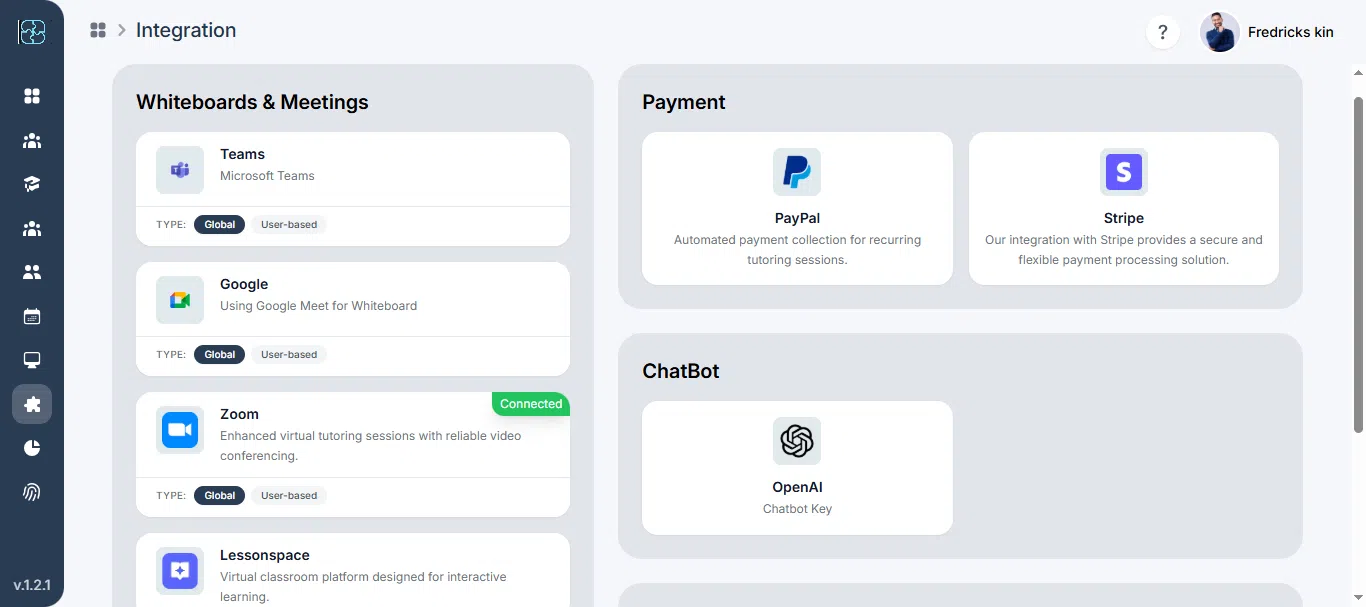
From your left-hand sidebar, click Integrations.
In the Integrations window, open the Whiteboards & Meetings tab.
You’ll see available options such as Zoom, Google Meet, and Microsoft Teams.
Step 2: Choose Integration Type
Select the option that best fits your setup.
Global Integration – Recommended for administrators who want to connect a single Microsoft Teams account for the entire organization.
- User-Based Integration – Designed for individual tutors or team members who prefer connecting their own Teams accounts.
Step 3: Open the Microsoft Teams Card
Once you’ve chosen your integration type, find the Microsoft Teams card under Whiteboards & Meetings and click it to begin setup.
Microsoft Teams helps you conduct secure online sessions, share resources, and manage live classes or meetings directly through Seemi CRM.
When you click the card, you’ll see a pop-up message:
Important Note
To create or schedule Microsoft Teams meetings, your Microsoft account must have an active Microsoft 365 Business or Education subscription.
Free Outlook or personal Microsoft accounts (e.g., @outlook.com, @hotmail.com, @live.com) cannot create meeting links through Microsoft Graph API.
Note: If you only want to sync your calendar events, you can still proceed — but meeting creation will not be available.
You can now proceed with either a global or user-based setup depending on your chosen option.

Step 4A: Global Integration Setup
If you select Global Integration, follow these steps:
- Click Connect Teams on the card.
- You’ll be redirected to Microsoft’s secure login page.
- If you already have a Microsoft account, sign in using your organization’s Microsoft 365 credentials.
- If you don’t have an account, click Create one to register a new Microsoft account before continuing.

3. Review the permissions and click Accept to grant access.
4. Once authorized, you’ll return to Seemi CRM automatically.
Your organization’s Teams account will now be connected globally. All users in your system can create and manage Teams meetings using this shared account.

Step 4B: User-Based Integration Setup
If you select User-Based Integration, each tutor or staff member will connect their own Microsoft Teams account instead of using a shared one.

After selecting User-Based Integration, complete the connection through your Profile Settings:
- Click your Profile icon at the top right corner of the dashboard.
- Select Preferences from the dropdown menu.
- Open the Connections tab.
- Under Connected Accounts, find Microsoft Teams with the description:
“Connect your accounts to seamlessly conduct online classes and manage your teaching sessions.”
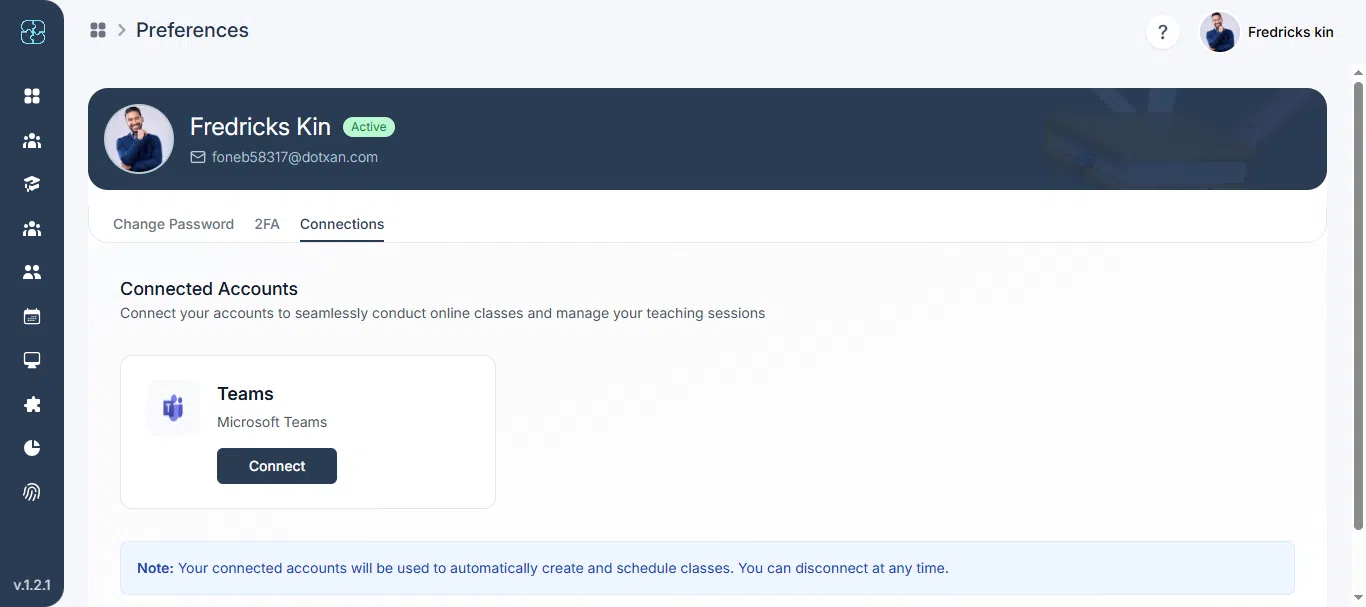
5.Click Connect next to Microsoft Teams.
6.You’ll be redirected to Microsoft’s login page.
- If you already have a Microsoft account, sign in.
- If not, click Create one to make a new account before proceeding.
7.Review permissions and click Accept.
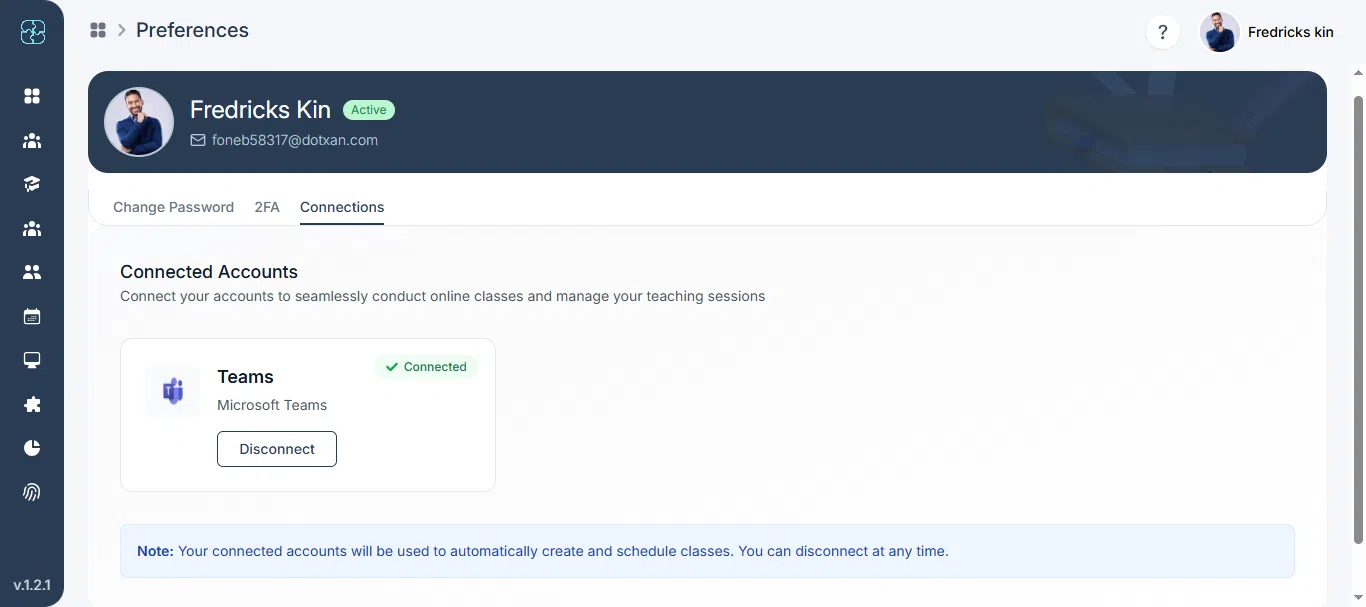
8.Once authorized, you’ll return to Seemi CRM, and Teams will display a connected status.
Note: Once connected, your Teams account will automatically be used to create and manage online sessions. You can disconnect anytime from the same tab.
Step 5: Confirm Successful Connection
After authorization, the Teams card (for Global Integration) or the Teams entry under Connections (for User-Based Integration) will display a connected status.
You can now create, manage, or join Microsoft Teams meetings directly from your tutoring sessions or calendar.
Step 6: Disconnect Microsoft Teams
If you want to remove the Microsoft Teams integration:
- For Global Integration: Go to Integrations › Whiteboards & Meetings, click the Microsoft Teams card, and select Disconnect.
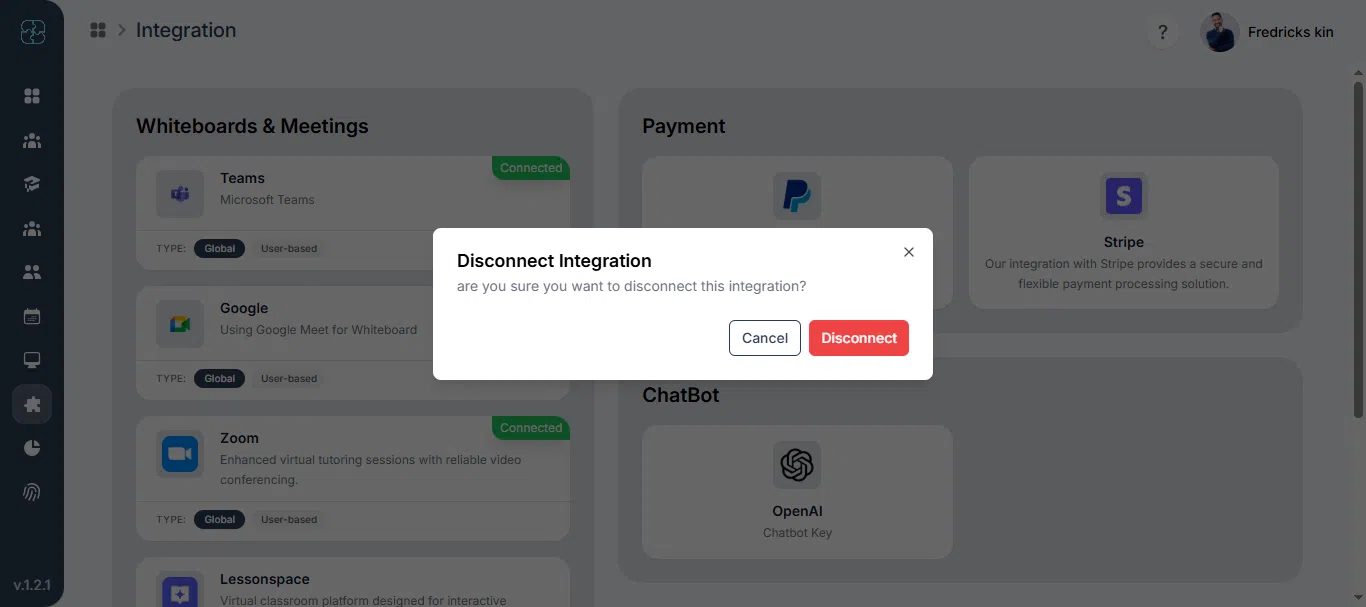
- For User-Based Integration: Go to Profile › Preferences › Connections, and click Disconnect next to Microsoft Teams.

Common Questions
Global Integration connects one Teams account for the entire organization, while User-Based Integration allows each tutor or staff member to connect their own account individually.
Go to Profile › Preferences › Connections, then click Connect next to Microsoft Teams to authorize your account.
A Connected status will appear on the Teams card (Global) or in the Connections tab (User-Based), confirming the setup is complete.
Yes. You can disconnect anytime from Integrations (for Global) or from Profile › Preferences › Connections (for User-Based).