
Suggested articles
Calendar Integration Guide
This guide explains how to connect your Seemi CRM calendar with external platforms like Google Calendar, Apple iCalendar (iCal), or Microsoft Outlook Calendar. By syncing your calendar, you can keep tutoring sessions, meetings, and lessons updated across all your devices automatically.
Step 1: Open the Calendar Module
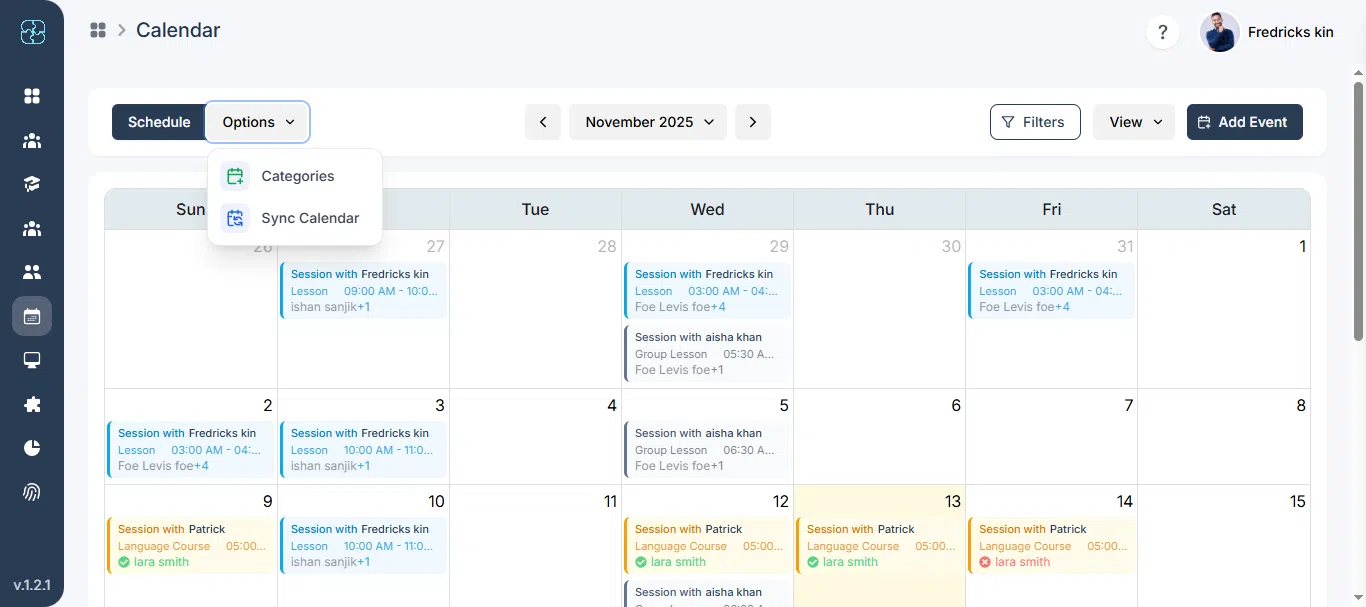
From your Seemi CRM dashboard, click Calendar in the left sidebar.
At the top of the Calendar screen, you’ll see two main tabs: Schedule and Options.
- The Schedule tab displays all your upcoming tutoring sessions, lessons, or meetings.
- The Options tab allows you to configure settings such as Categories and Sync Calendar through its dropdown menu.
Step 2: Access the Sync Calendar Option
Click the Options dropdown beside the Schedule tab.
From the list, select Sync Calendar. This will open the calendar synchronization settings window.
Here, you’ll find three available sync options:
- Google Calendar – Sync with your Google account for live updates.
- iCalendar (Apple) – Sync with Apple Calendar & iCal.
- Outlook Calendar – Sync with your Microsoft Outlook account.

Step 3: Choose and Connect Your Calendar Provider
Now, select the calendar service you want to connect.
Each option will guide you through a short login or authorization process.
You’ll see three options on the screen:
Google CalendarClick Connect with Google Calendar.
A popup window will appear asking you to sign in with your Google account.
Once logged in, choose the Google account where you want to sync your lessons and meetings.

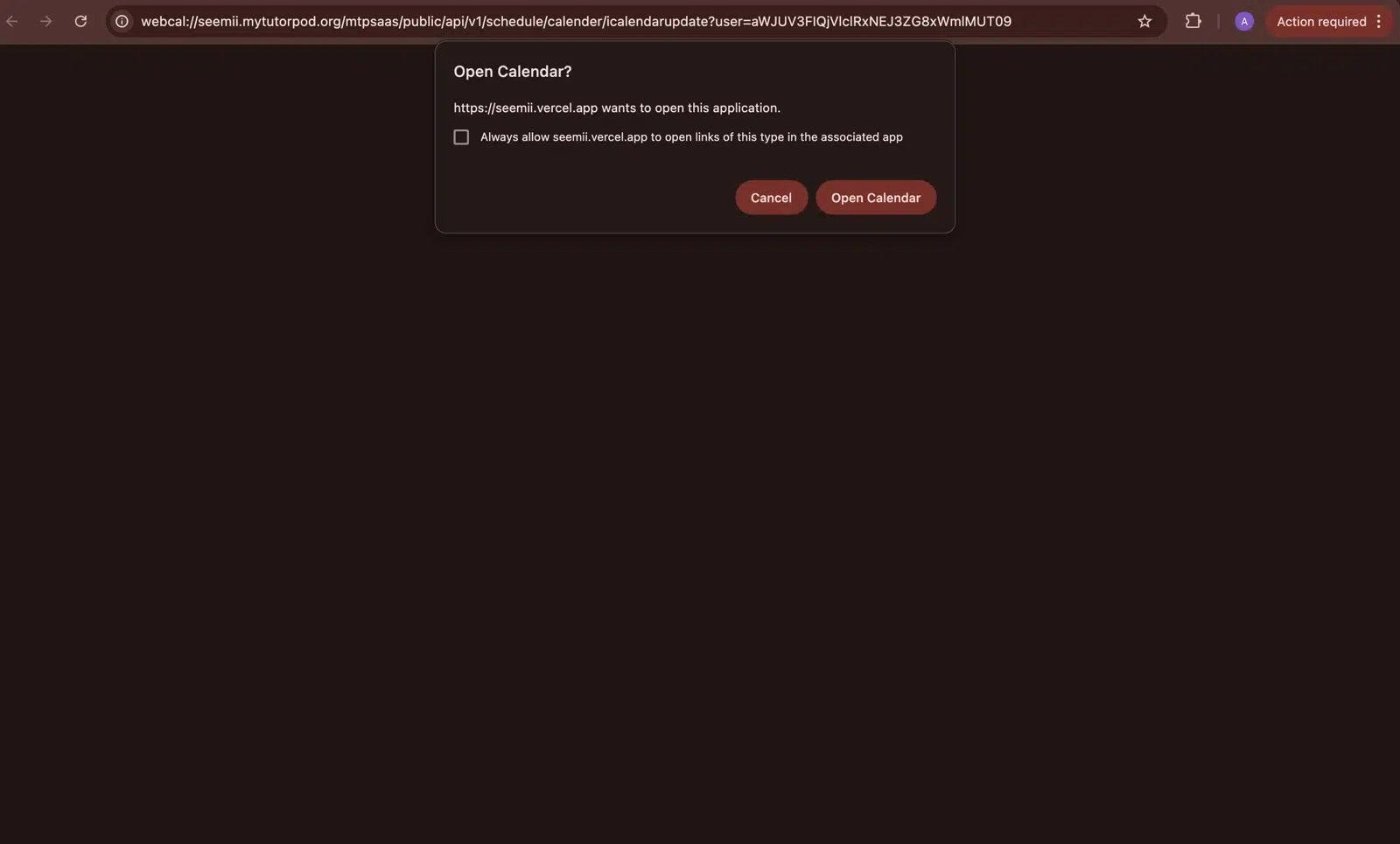
Apple iCalendar (iCal)Select Connect with Apple iCalendar.
You’ll be redirected to the Apple login screen.
Use your Apple ID to authorize calendar sync, allowing Seemi CRM events to appear in your iCal app automatically.
Click Connect with Google Calendar.
A popup window will appear asking you to sign in with your Google account.
Once logged in, choose the Google account where you want to sync your lessons and meetings.
Microsoft Outlook CalendarChoose Connect with Outlook Calendar.
Sign in using your Microsoft account credentials.
Once logged in, confirm the permissions to let Seemi CRM sync your meetings, sessions, and events.

Step 4: Add Your Business Information
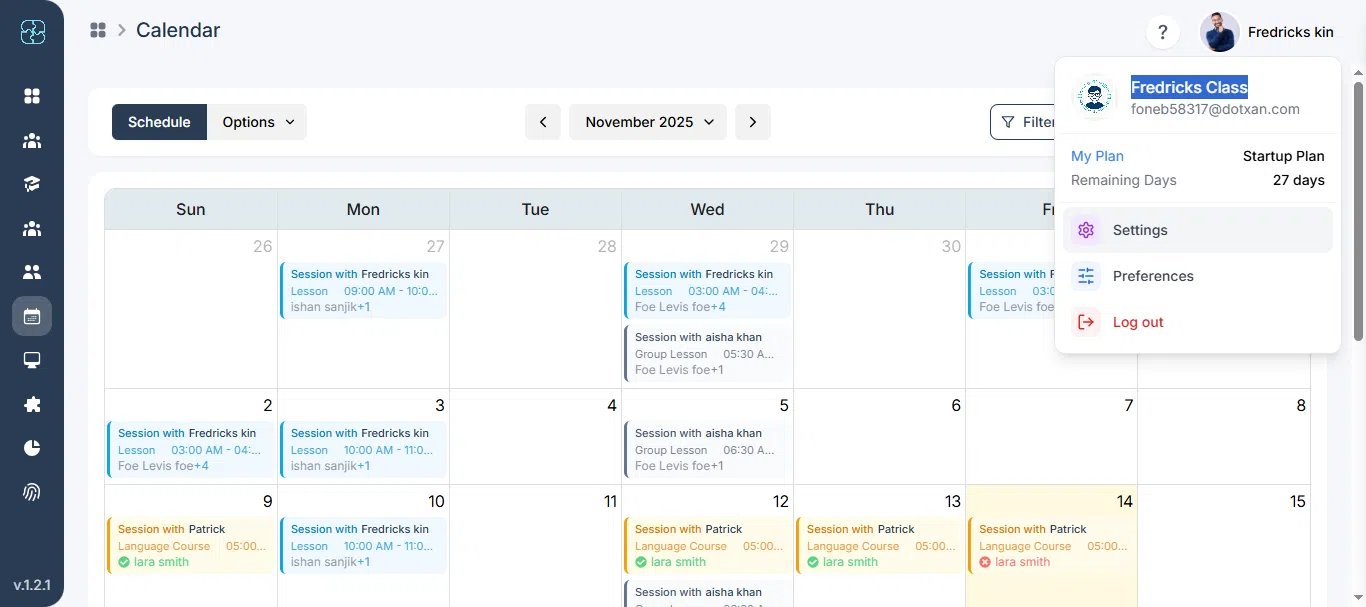
Before you finish connecting, enter your Business Name (for example, Fredrick’s Class).
This name will appear as a label beside synced events in your external calendar — helping you distinguish which business the events belong to.
When multiple businesses are connected, you’ll see a sidebar option to select which business you want to sync.
You can also later disconnect that specific business if needed.
Step 5: Authorize and Complete the Sync
After entering your business name, a permission screen will appear — this step varies slightly depending on which calendar service you selected:
For Google Calendar:A browser popup will open showing Google’s authorization request.
Click Allow to confirm access.

For Apple iCalendar (iCal):You’ll be redirected to Apple’s account access screen.
Click Authorize to permit syncing events from Seemi CRM to iCal.


For Microsoft Outlook Calendar:A Microsoft login window will open.
Once you review the requested permissions, click Accept to connect Outlook with your Seemi CRM account.
Step 6: Verify the Sync Connection
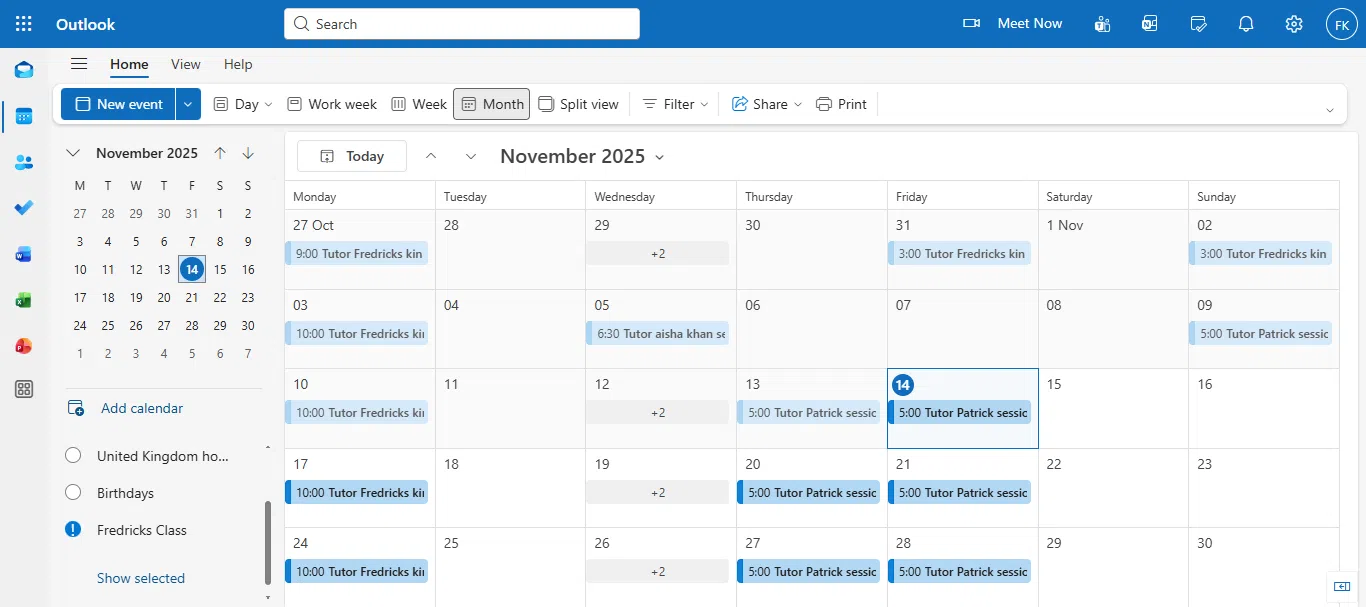
After successful authorization, your calendar connection will be complete.
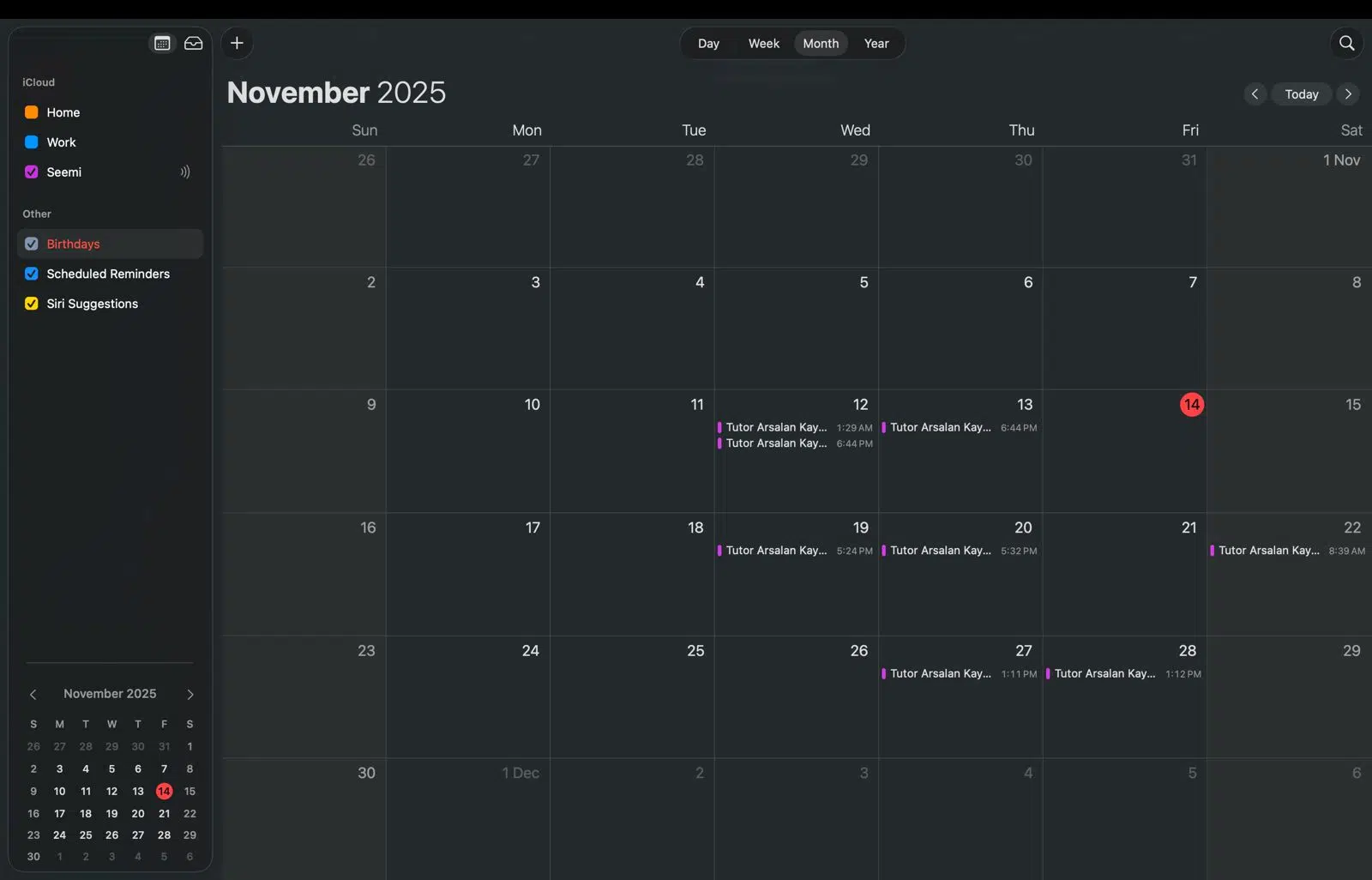
To confirm, check your connected external calendar — Google, Apple, or Outlook — and verify that your tutoring sessions, lessons, or meetings now appear there automatically.
Step 7: Disconnect or Update the Calendar Sync
You can disconnect your linked calendar anytime by revisiting the Sync Calendar option under Options in the Calendar tab.
When you disconnect, the associated business (for example, Fredrick’s Class) will automatically unlink and stop syncing new events.


Common Questions
Go to Calendar → Options → Sync Calendar, choose a provider, sign in, add your business name, and allow access.
Google Calendar, Apple iCalendar (iCal), and Microsoft Outlook Calendar.
It labels your events in the external calendar and helps manage multiple businesses.
Check your external calendar to see if Seemi CRM sessions appear.
Yes, you can disconnect anytime from Sync Calendar settings.
No, existing events stay; only new syncing stops.