Onboarding
Create Your First Package
Set Up Your First Lesson
How to Add Your First Prospect
Create Your First Invoice
Add Student
Set Up Your Business Profile
Suggested articles
How to Use Website Widgets
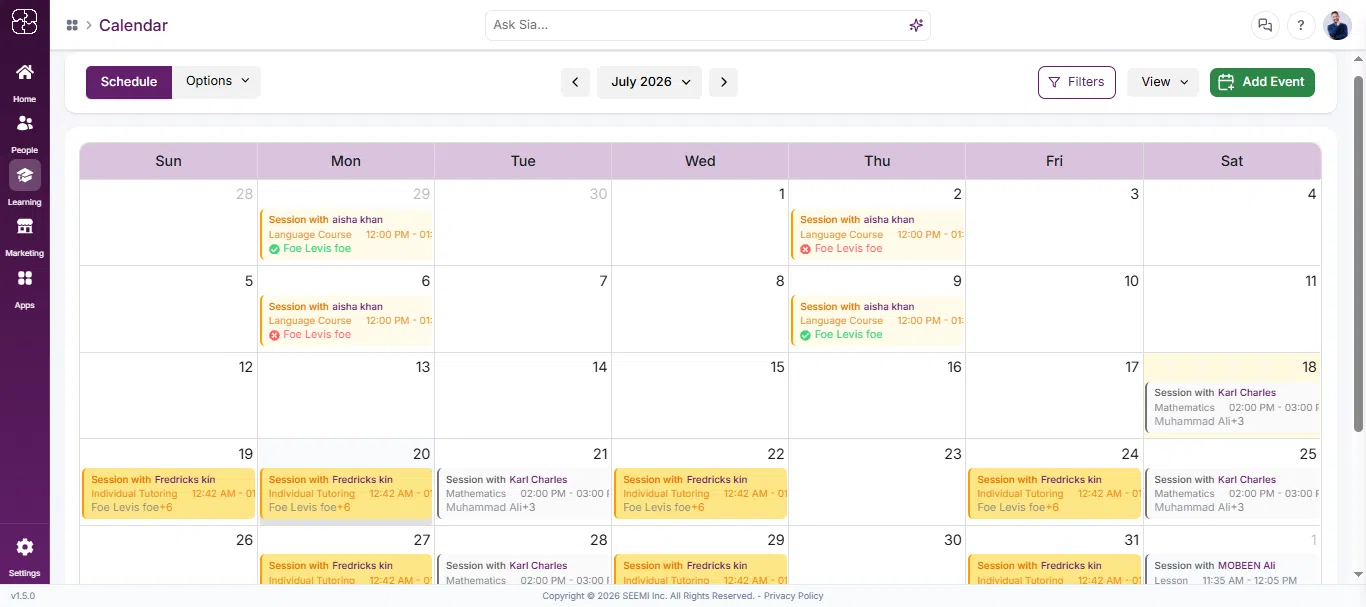
This step helps you schedule your first class by adding a lesson to the calendar. Once completed, your onboarding progress updates automatically.
Onboarding Step: Set Up Your First LessonAction Button: Add EventEstimated Time: 1–2 minutes
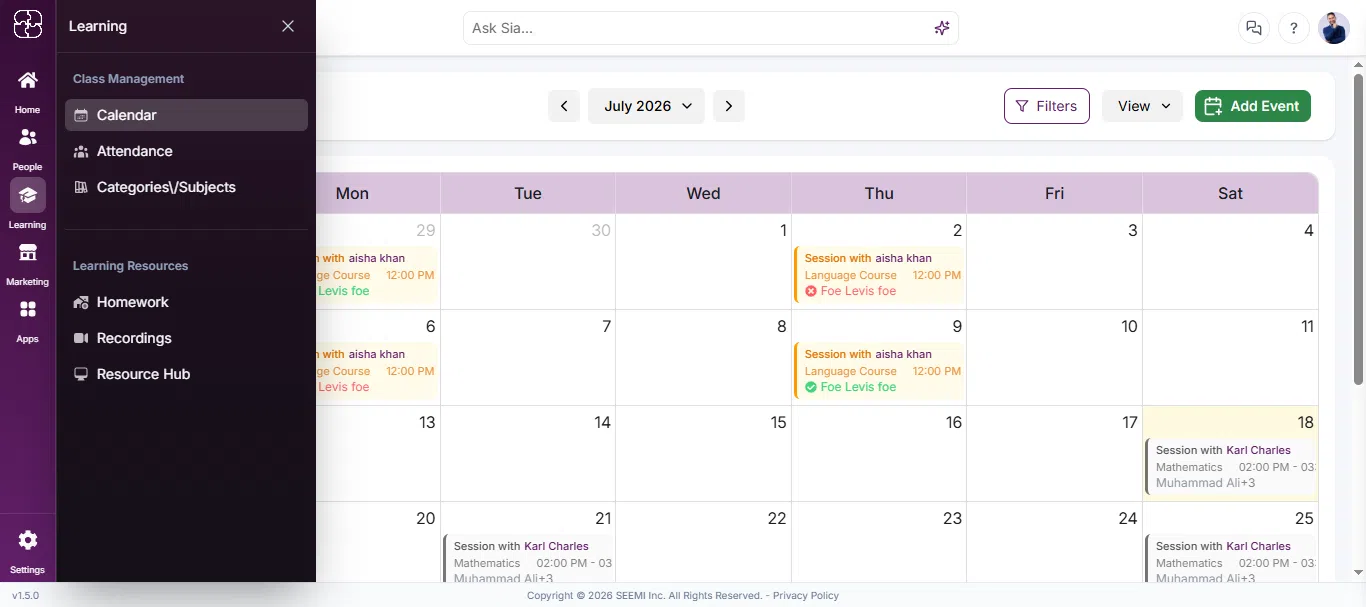
From the left sidebar, click Learning, then select Calendar under Class Management.
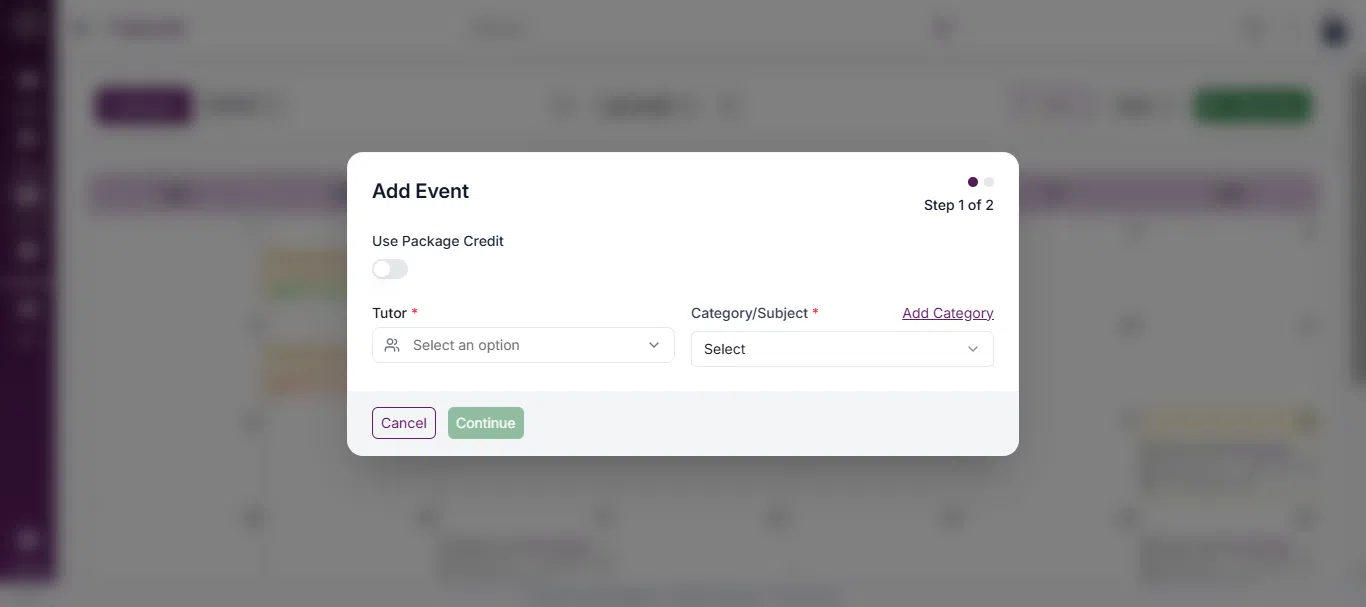
In the top-right corner, click Add Event to create a new lesson.
Fill in the essential fields to create the lesson:
Optional fields like platform or notes can be added if needed.
Click Create to schedule the lesson.
If you face any issues, schedule a call or chat with us for instant support.