
Suggested articles
How to Check Student Details in Seemi
This guide helps tutors easily view and manage student information, including contact details, assigned tutors, attendance, and package history.
Step 1: Access the Students Tab
- From the left sidebar, click People, then select Students.
- You’ll see a list of students assigned to you.
Each row displays:
- Family name
- Tutor (or “Assign tutor” if none is set)
- Next Class (date and time, or “No upcoming class”)
- A pencil icon and ⋯ menu under Actions to edit/view more


Step 2: Open a Student's Profile
Click on a student (e.g., Muhammad Ali) to open their full profile.
You’ll be taken to a detailed student dashboard with several tabs at the top:
Tabs include:
- Overview
- Classes
- Packages
- Tutors
- Attendance
- Emails
- Notes
Step 3: Explore Each Tab
Overview
A quick summary of the student, including:
- Next Class (date, time, subject, tutor, duration)
- Makeup Credits available
- Assigned Tutor
- Active Package status
- Recent Attendance breakdown (Present, Late, Absent, Not Marked)

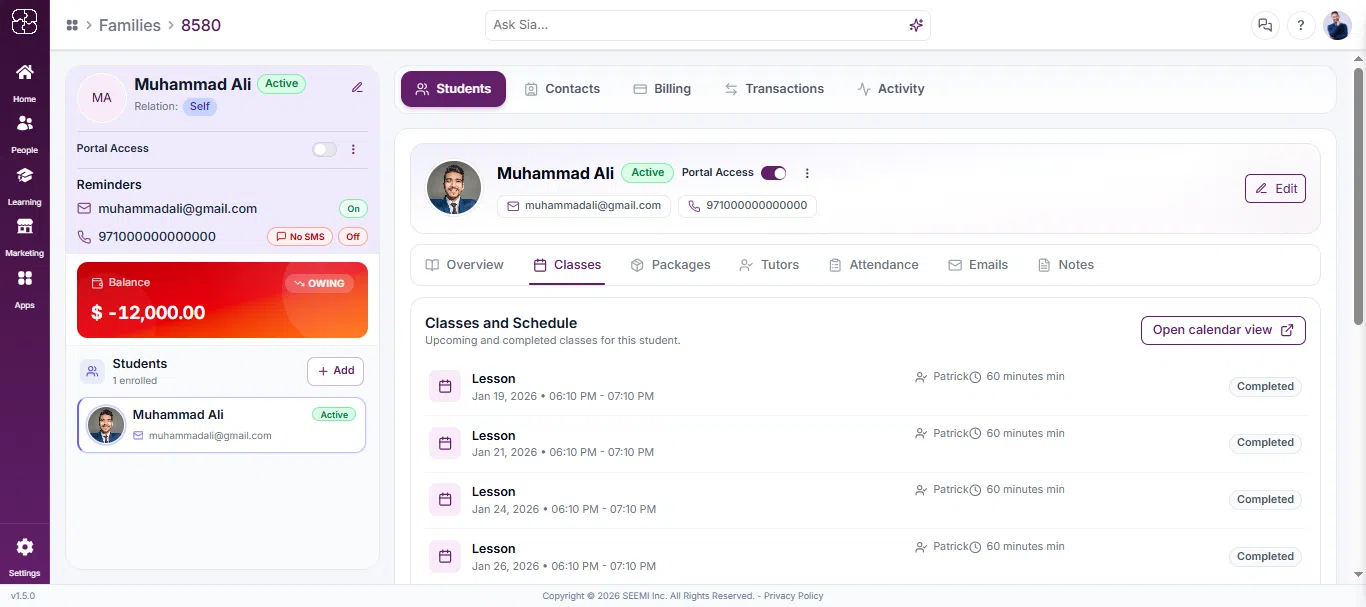
Classes
View the student’s full class schedule and history, including:
- Lesson type, date, and time
- Assigned tutor and session duration
- Status (e.g., Completed)
- An Open calendar view link for a full calendar layout
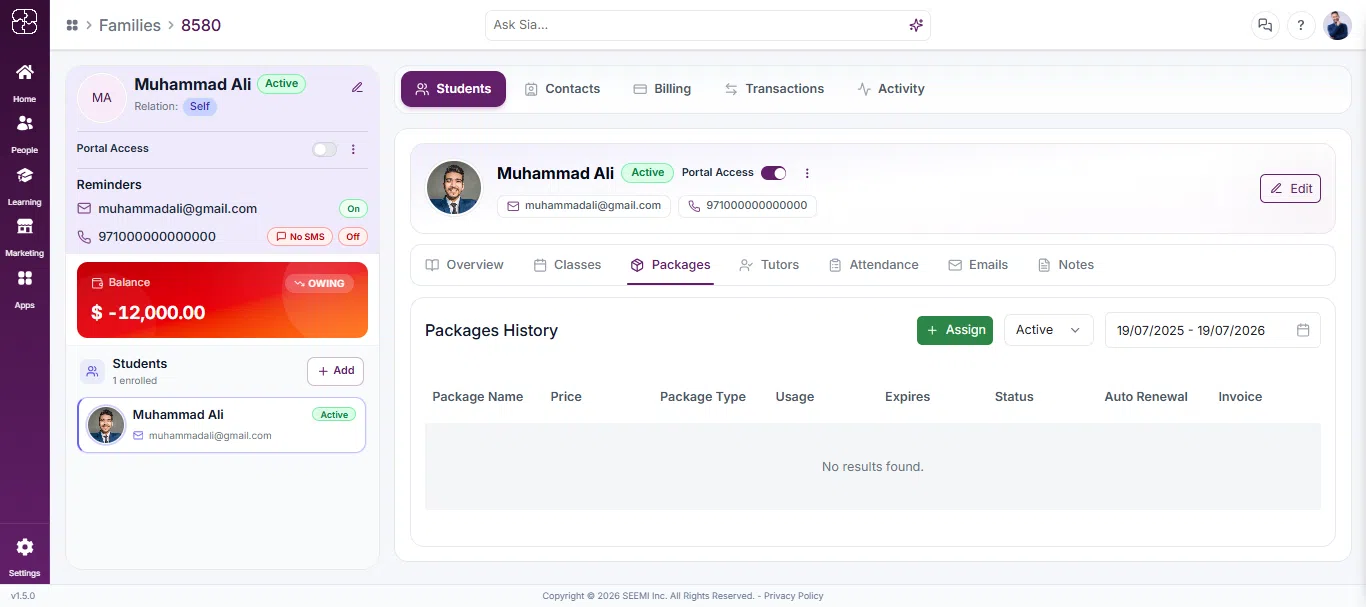
Packages
Check the student’s active or expired packages under Packages History, including:
- Package Name, Price, and Package Type
- Usage and Expiry
- Status and Auto Renewal
- Linked Invoice
Use + Assign to add a new package. If no active packages are found, the seemi will show “No results found.”
Tutors
See tutors currently assigned or unassigned to the student, listed under Assigned Tutors and Unassigned Tutors tabs. Each entry shows the tutor’s name and email, with quick-action icons to manage or edit the assignment. Use Assign New Tutor to add one.

Attendance
Get an overview of attendance for a selected date range, including:
- Total, Not Marked, Present, Absent (notice)
- Absent, Late, T. Cancel, T. Late
Below this, a detailed log lists each session by Tutor, Date, Duration, Type, Category, Status, and Remarks.

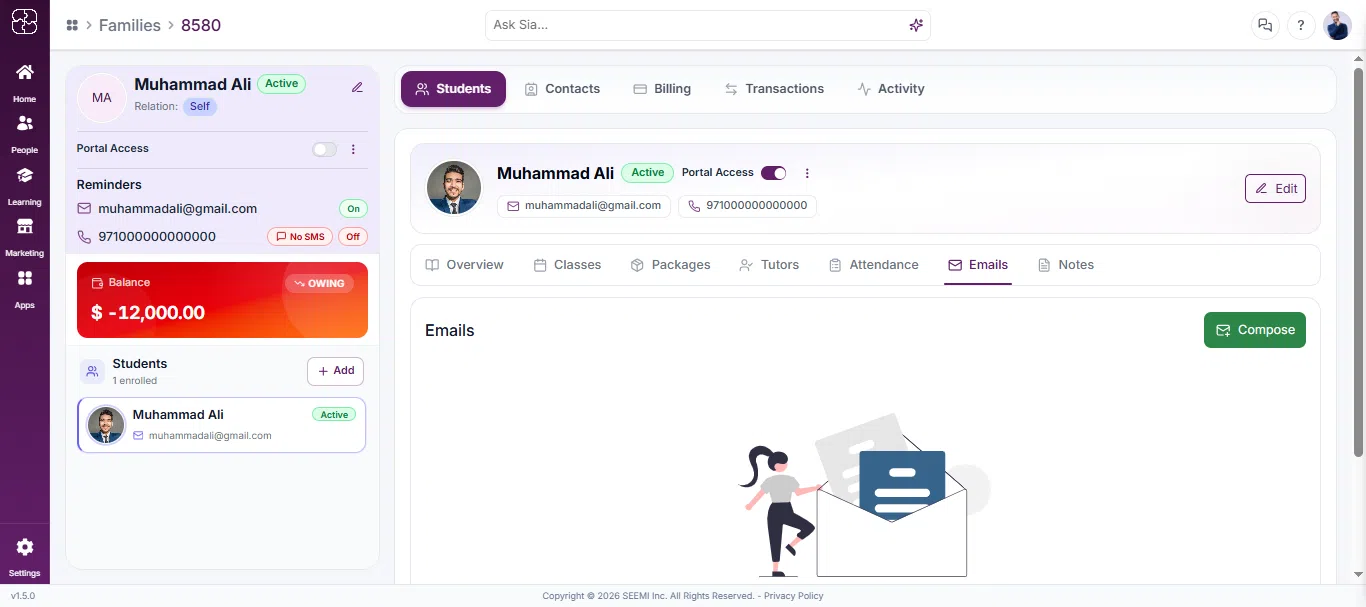
Emails
View a log of emails sent to the student/family, or click Compose to send a new one. If none exist, this tab shows “No emails recorded for this student.”
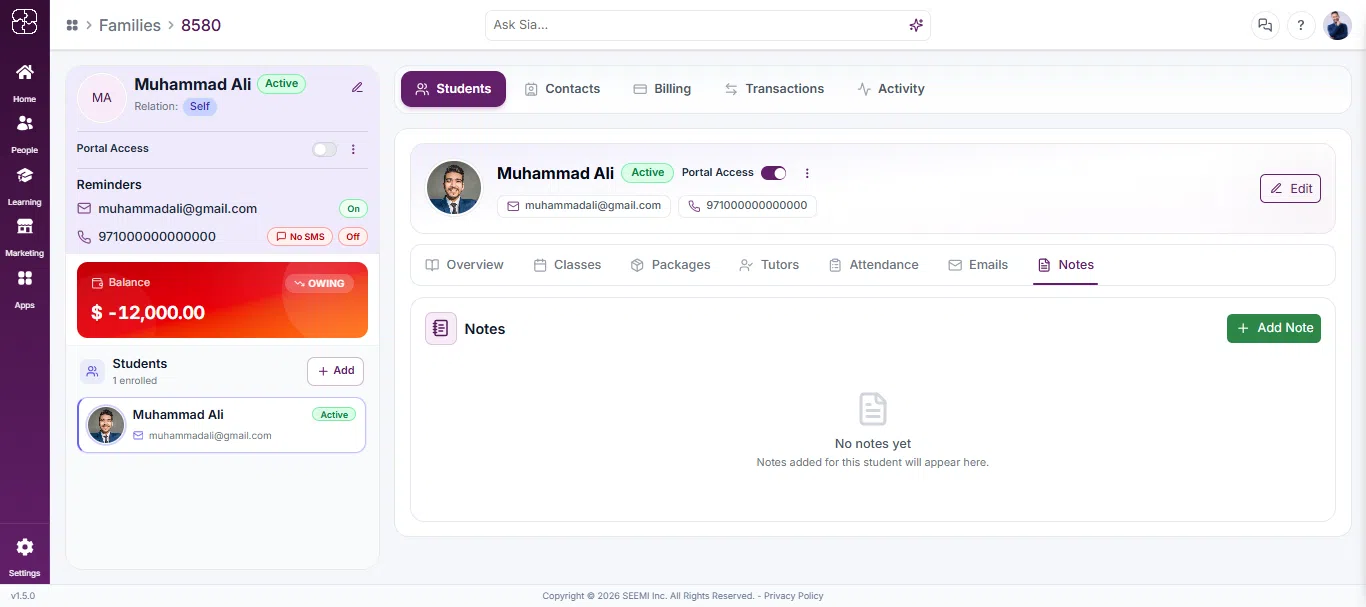
Notes
View internal notes added for the student, or click + Add Note to create one. If none exist, this tab shows “No notes yet.”
Step 4: View Contact Info Sidebar
On the left side of the student profile page, you’ll see:
- Name, status (e.g., Active), and relation (e.g., Self)
- Portal Access toggle
- Reminders — email and phone number, with SMS/email status (On/Off)
- Balance — current amount owing or prepaid
- Students panel showing enrolled student(s) linked to this profile
Common Questions
Go to the Students tab from the left sidebar. You’ll see a list of all assigned students with their names, status, family contact, and tutors. Click on a student’s name to open their detailed profile.
Each profile includes several tabs such as Profile, Family Info, My Tutors, Portal, Email, Attendance & Notes, and Packages History. These sections help you review contact details, attendance, tutors, and package records in one place.
Open the Family Info tab in the student’s profile. Here, you can view the parent or guardian’s name, phone number, email, address, and reminder status for SMS or email notifications.
In the Packages History tab, you’ll find details about the student’s active or expired packages, including package name, type, price, and expiry date. If there are no active packages, the message “No results found” will appear.
Go to the Attendance & Notes tab to see attendance types such as Present, Absent, Teacher Late, or Cancelled. You can also view lesson logs, duration, and notes added for each class.
Yes. On the right side of the student profile page, you’ll find a quick view section showing the phone number, address, email, and SMS or email reminder status for the parent.