
Suggested articles
Getting Started with Seemi: A Step-by-Step Guide for Students
This guide will help you learn how to log in, explore your profile, view lessons, and make the most of your online learning journey.
Step 1: Check Your Email
Once your tutor or school admin has added you to Seemi, you will receive a welcome email from Seemi.
Subject: Welcome to Seemi
Look for a button: ResetYour Password

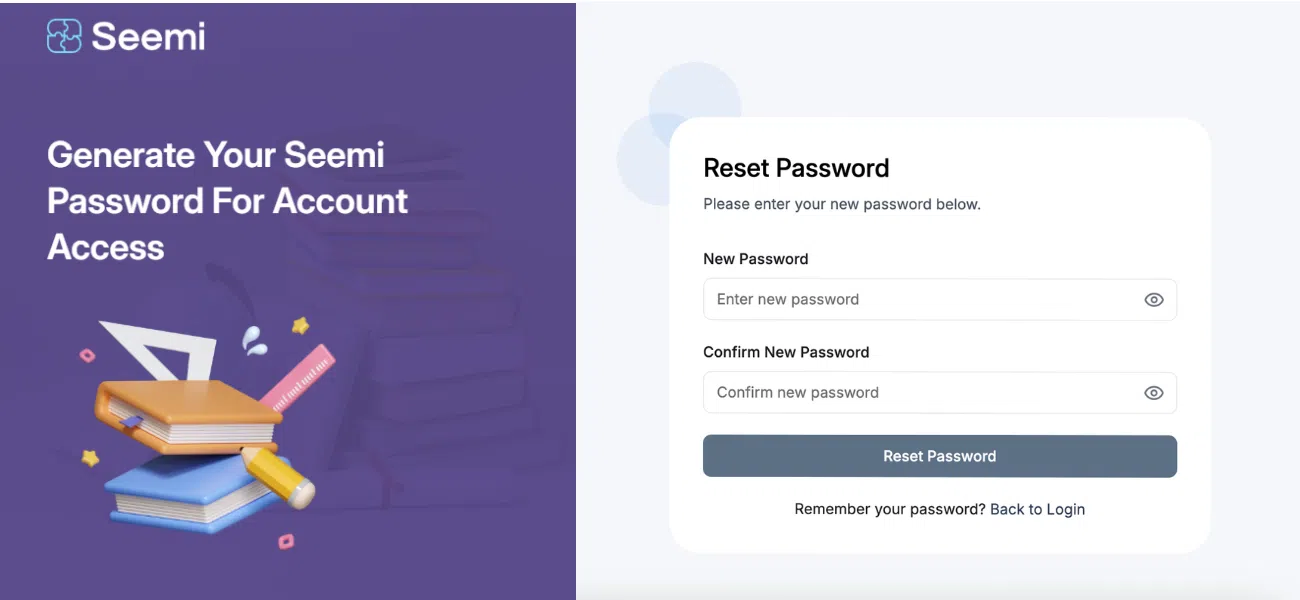
Step 2: Set Your Password
Click the “Reset Your Password” button in the email.
You will be redirected to a secure page to create your personal password.
Choose a strong password and confirm it.
Step 3: Verify Your Email
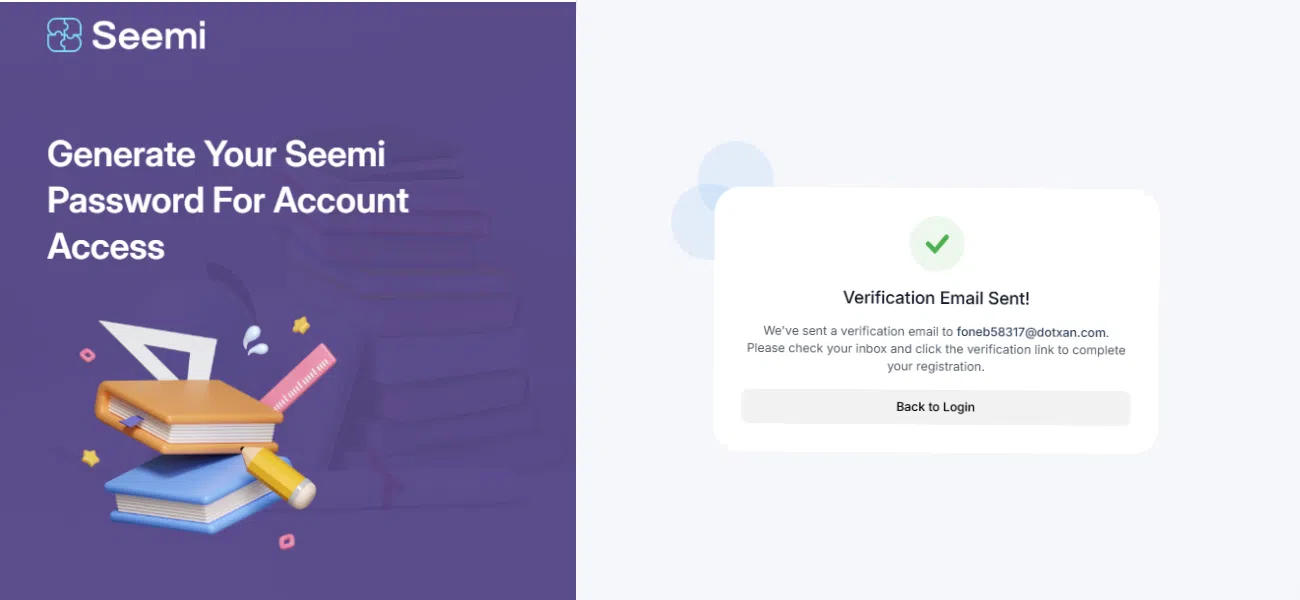
After setting your password, you’ll be prompted to verify your email.
Open your inbox again.
Look for a new email from Seemi with a “Verify Your Email” link.
Click the link to confirm your email address.
You’ll see a confirmation message:
“Email Verified Successfully”

Step 4: Log In to Your Account
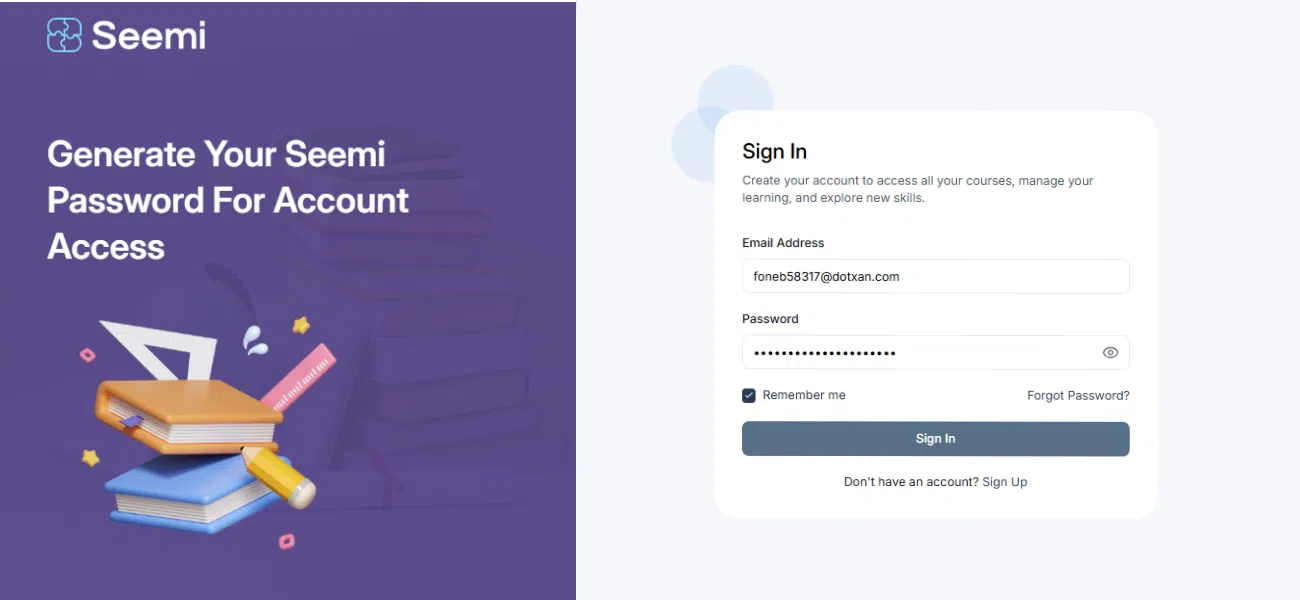
Go to the Seemi login page.
Enter your email address and the password you just created.
Click “Sign In.”
Step 5: Explore Your Dashboard
- Home – Returns you to your dashboard overview.
- People – View your student, Families, Team and Leads profile.
- Learning – Access your lesson schedule, materials, and track your progress.
- Marketing – View announcements, offers, or promotional updates shared with You.
- Apps – Access connected tools and integrations linked to your account.
- Settings – Manage your profile details, password, and notification preferences.

Common Questions
You’ll receive a welcome email from Seemi once your tutor or school admin adds you. Open it and click Reset Your Password to create your login credentials.
Check your spam or junk folder. If it’s not there, contact your tutor or admin to resend the invitation.
After setting your password, open the verification email from Seemi and click Verify Your Email. You’ll see a confirmation message once it’s done.
Visit the Seemi login page, enter your registered email and password, and click Sign In to access your account.
Your dashboard lets you view profiles under People, access lessons and materials under Learning, check updates under Marketing, and manage your account under Settings.
Click Forgot Password on the login page and follow the instructions in the reset email to set a new one.