
Suggested articles
How To Import Students in bulk
Step 1: Download the Sample File
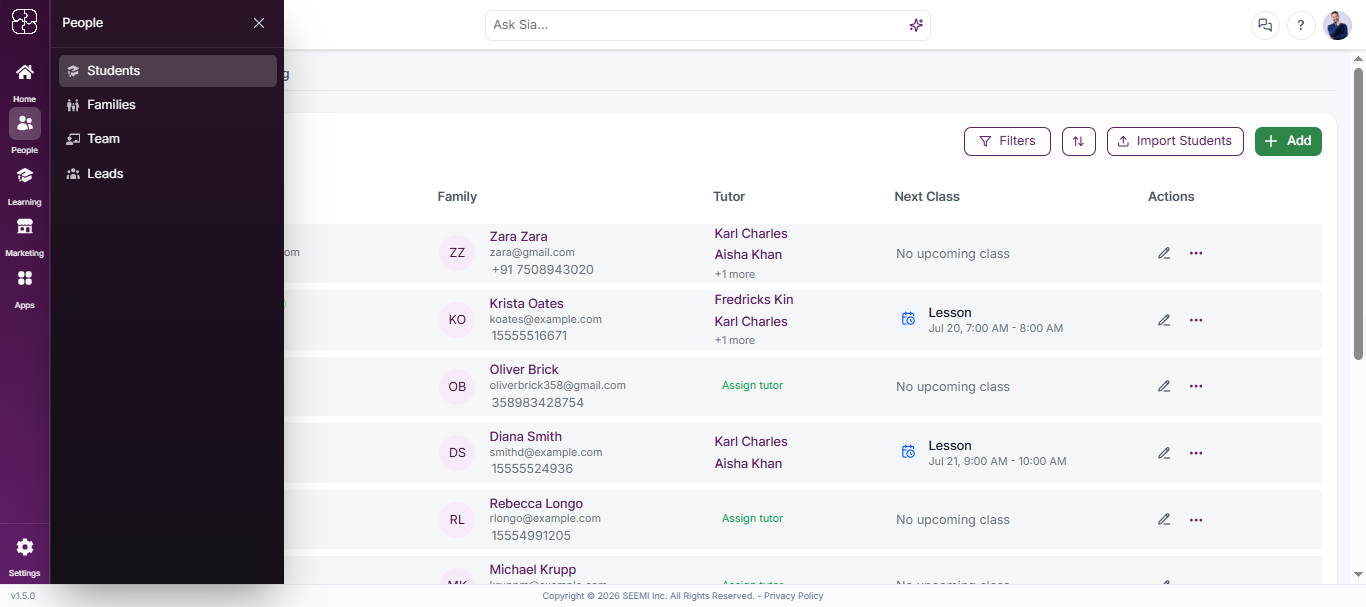
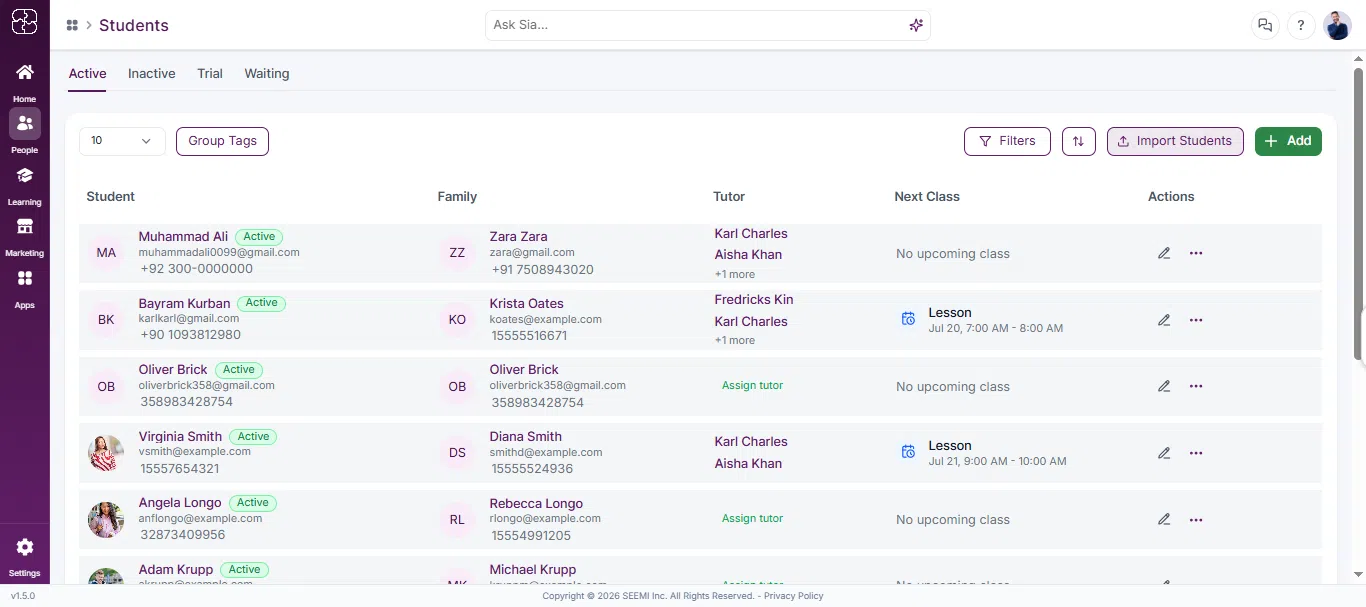
- From the left sidebar, click People, then select Students.
- Click the Import Students button (top-right).
- In the pop-up, under “Before You Start,” click Download Sample File.
- Open the downloaded file in Excel or Google Sheets.
Sample File Format
Field | Required | Notes |
Student-First-Name | ✅ | Text |
Student-Last-Name | ✅ | Text |
Student-Email | ✅ | Must be unique and valid email |
Student-Phone | ✅ | Must be unique and valid phone |
Student-SMS-Capable | ✅ | Yes or No |
Student-Gender | ✅ | Male or Female |
Student-Address | ✅ | Text |
Student-DoB | ✅ | Format: YYYY-MM-DD |
Student-School | ✅ | Text |
Student-Start-Date | ✅ | Format: YYYY-MM-DD |
Student-Note | ✅ | Optional Text |
Family-First-Name | ✅ | Text |
Family-Last-Name | ✅ | Text |
Family-Email | ✅ | Valid email |
Family-Mobile | ✅ | Use full number without scientific notation |
Family-Address | ✅ | Text |
Step 2: Upload the File
- Click on the dashed box (Click to upload or drag and drop) or drag your CSV file into the upload area.
- File must:
- Be in CSV format
- Be under 10 MB
- Click Preview to continue.

Step 3: Review Data Before Import
- Review the previewed data for accuracy.
- Fields with errors or missing required data will be highlighted.

Step 4: Complete the Import
- Review the highlighted data.
- If everything is correct, click Import.
- A success message will confirm how many students were imported.

Troubleshooting
1. Scientific Notation in Phone Numbers:
❌ 1.555123e+10 → ✅ 15551234567
Fix: Format phone number cells as plain text in Excel.
2. Duplicate Email:
The system checks existing records. For example:
[email protected]was already imported before.Even changing names (e.g., “Eric101”) won’t help if phone/email is the same.
Fix: Ensure email is completely unique.
3. Missing Required Data:
Rows missing email, phone, or gender will not import.
Anne Fallon: missing phone.Adam Krupp: missing phone.Amanda Longo: missing email.
Fix: Provide either email or phone, and ensure all required fields are filled.
4. Incorrect Date Formats:
Format dates as YYYY-MM-DD.
Avoid Excel date conversions like
10/12/91.
Fix: Manually set date columns to Text or Date (ISO) format.
5. Incorrect Gender Values:
Only Male or Female are accepted in small letters.
Common Questions
Use a CSV file only. You can download the official Sample File from the Import Students window to ensure correct formatting.
Rows with missing or duplicate emails, phones, or incorrect formats will be skipped. Check the error message and correct the data before re-uploading.
Dates must follow the YYYY-MM-DD format, and gender values should be either male or female only.
In Excel, change the phone number column to plain text before saving your CSV file.
Yes. The file must be under 10 MB to upload successfully