
Suggested articles
How to Change Currency
Step 1: Go to Settings
Log into your Seemi CRM account.
Click your profile icon in the top-right corner.
From the dropdown, select Settings.

Step 2: Open Business Settings
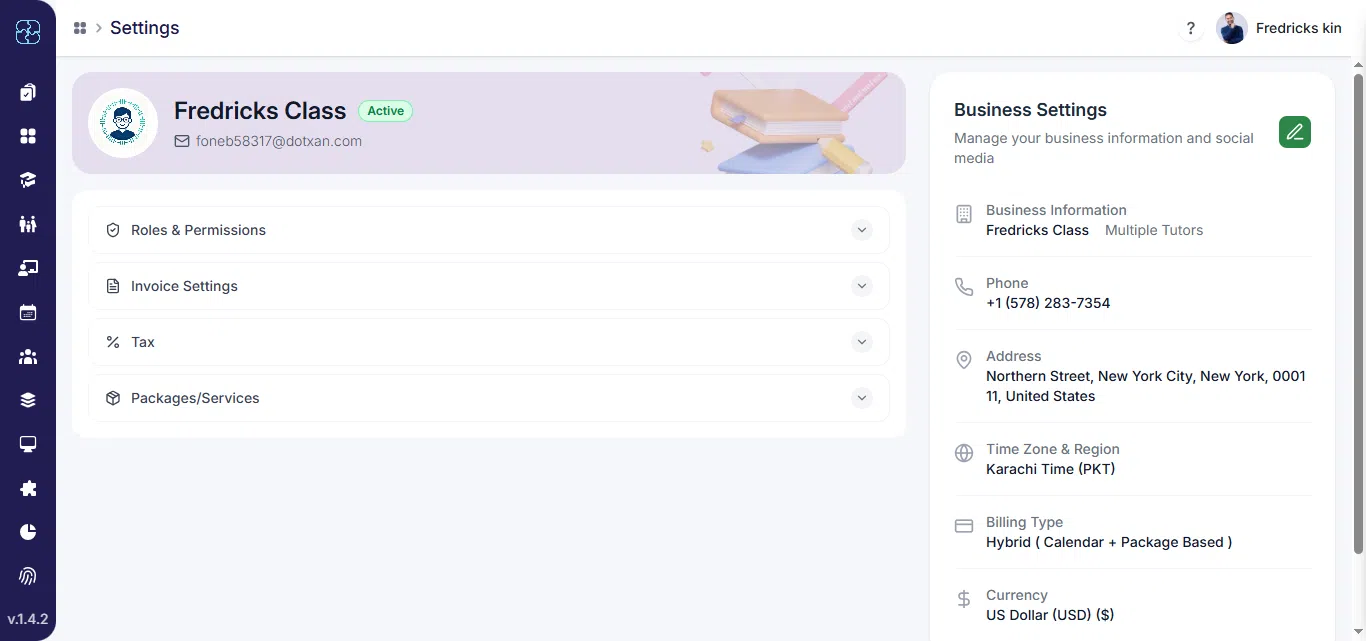
On the Settings page, look to the right under Business Settings.
Click the edit (pencil) icon next to your business info.
Step 3: Locate Currency Field
In the pop-up modal titled Edit Business Profile, find the Currency field.
It’s located in the right section, next to the Time zone field.
Click the dropdown and select your desired currency (e.g., USD, EUR, INR, etc.).

Common Questions
Log into your account, go to Settings, and open Business Settings. Click the edit icon beside your business profile, select your preferred currency from the dropdown, and click Update Profile to save the change.
No, previous invoices will remain in their original currency. The new currency setting will apply only to future invoices and transactions.
If yours preferred currency does not appear in the dropdown menu, try refreshing the page or clearing your browser cache. If the issue persists, contact support for assistance.