
Suggested articles
How to Check Package Usage Details
This tutorial explains how to view and track package usage for families or students. You can check session counts, expiry dates, attendance, and related invoices in one place.
Step 1: Open Family Profile
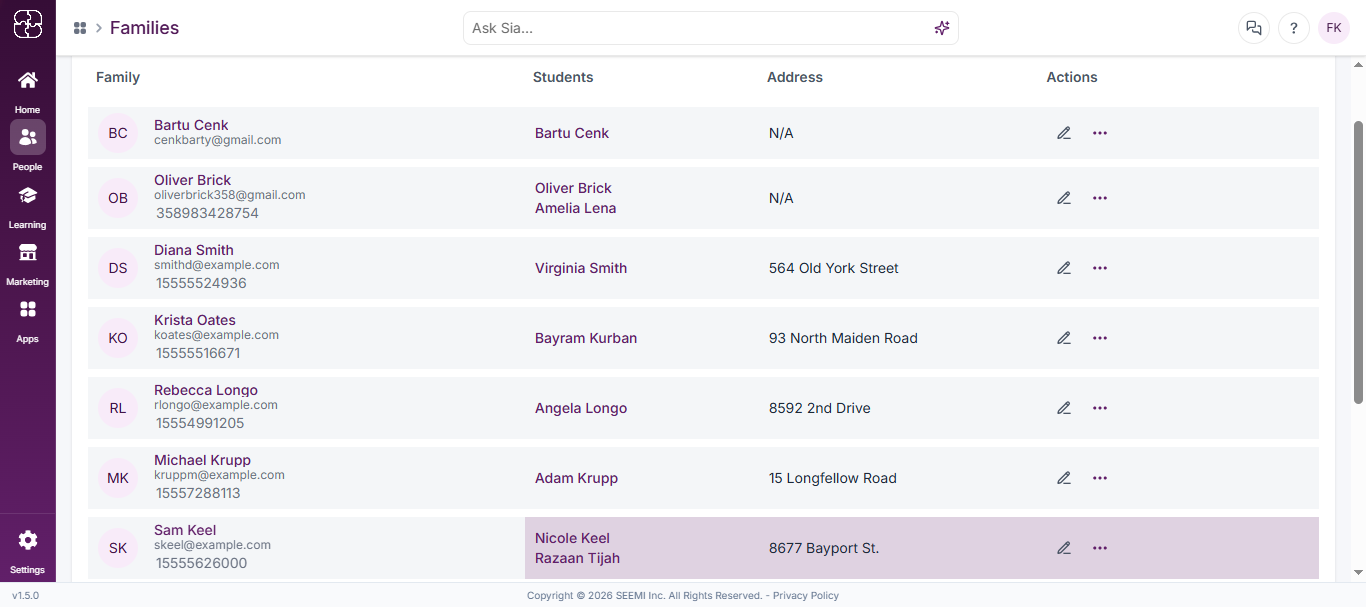
- From the left sidebar, click People, then select Families.
- Select the family whose package usage you want to review (e.g., Sam Keel).

Step 2: Go to the Billing Tab
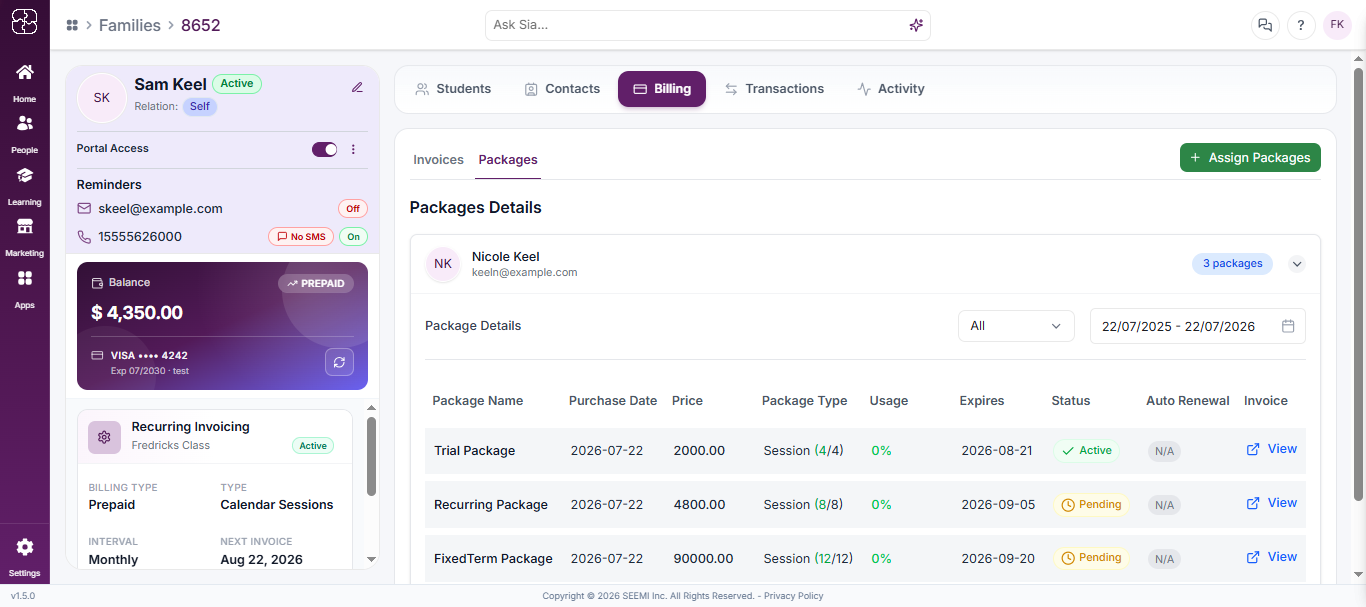
- Inside the family profile, click the Billing tab.
- Select the Packages sub-tab.

Step 3: Select a Student
- Under Packages Details, you’ll see each enrolled student listed with the number of packages they hold (e.g., “Nicole Keel — 3 packages”).
- Click on a student’s row to view their full package history.

Step 4: Review Usage Information
The Packages History grid displays:
- Package Name (with a short description)
- Price
- Package Type (e.g., Session-based, showing usage like 4/4)
- Usage (%)
- Expires (date)
- Status (Active, Pending, Expired)
- Auto Renewal
- Invoice (with a View link)
Use the date range filter and status dropdown (e.g., Active) at the top to narrow results. Click + Assign to assign a new package to this student.
Step 5: View Invoice Details
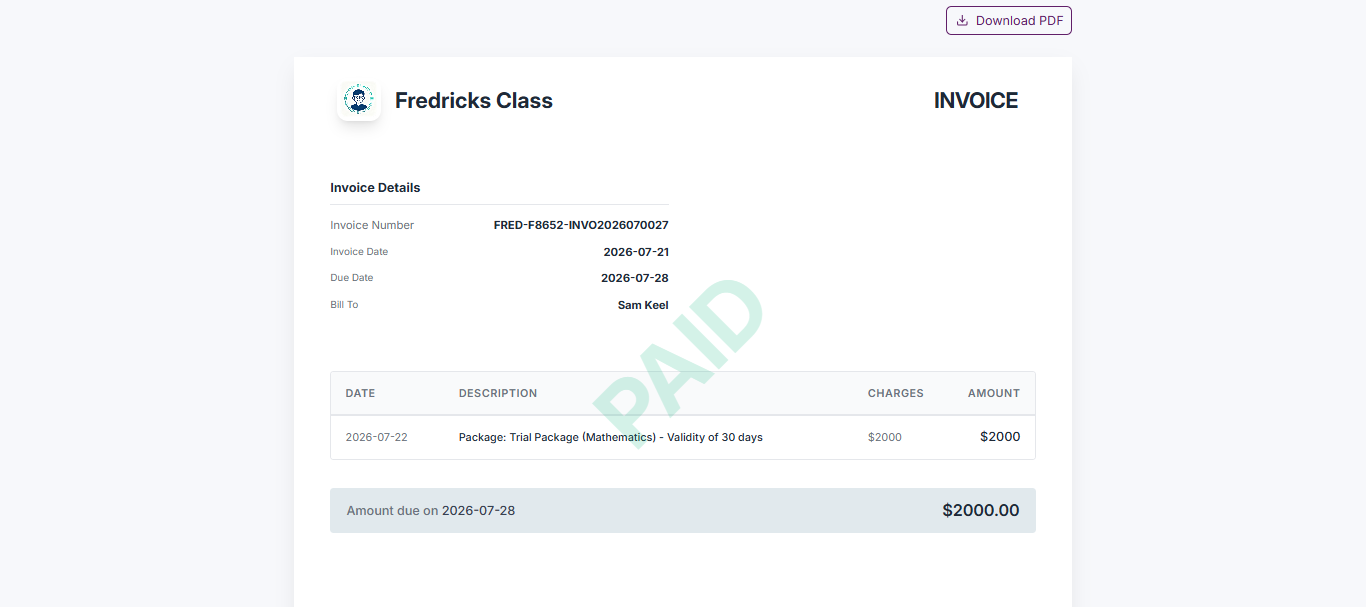
- Click View under the Invoice column to open the related invoice for that package.
- The invoice page shows:
- Invoice Details — Invoice Number, Invoice Date, Due Date, Bill To
- A line-item table with Date, Description (e.g., package name, validity), Charges, and Amount
- Total Amount due with the due date
- A PAID watermark if the invoice has been settled
- Click Download PDF to save a copy, or Student View to see how the invoice appears to the student.
- Click Back to return to the family’s Packages tab.
Common Questions
Go to Families → Packages tab and select the family or student to view all package usage details in one place.
You can see package name, purchase date, session usage, expiry date, price, status, and invoice links.
Click the Package Name to open detailed usage data, including session dates, attendance, duration, and remarks.
Yes, click View under the Actions column to see invoice details like number, date, payment status, and total amount.
The usage percentage shows how many sessions have been completed out of the total available in the package.
Open the related invoice and click Download to save it, or use Student View to see how it appears to the student.