
Calendar Module User Guide
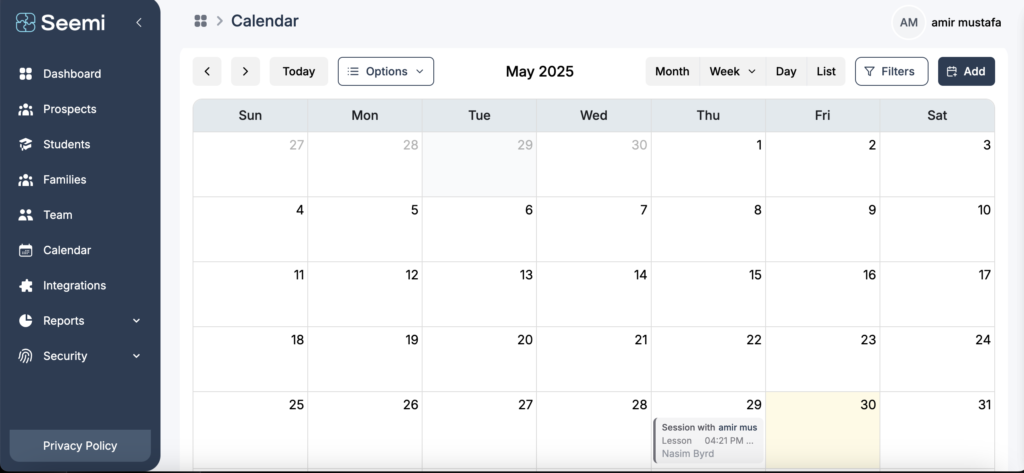
This tutorial will teach you clear, step-by-step Calendar Management on Seemi — covering creating events, taking attendance, filtering/sorting, viewing details, customizing categories, and tracking session history effectively.
Payroll & Summary – User Guide
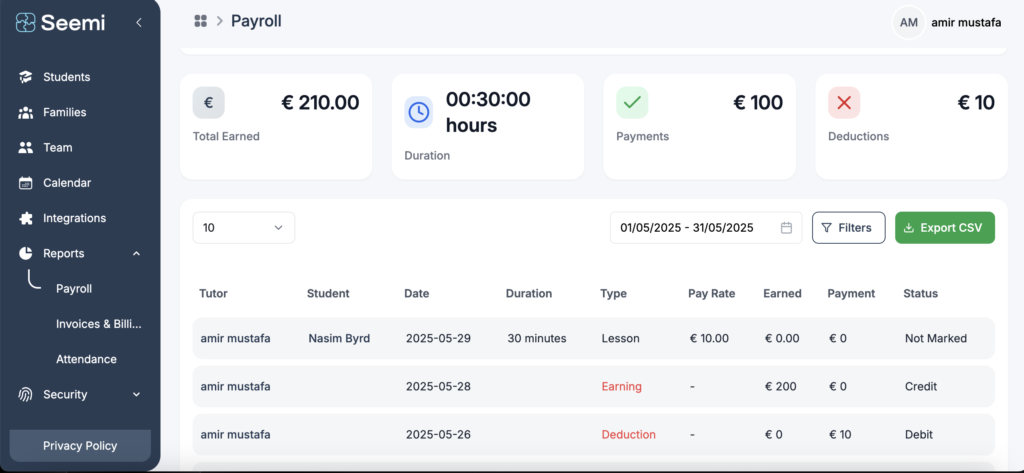
This tutorial will teach you clear, step-by-step Payroll Management from start to finish, covering:
Viewing payroll records – Filtering and sorting data – Understanding payment statuses – Managing deductions
– Exporting payroll data
Integration Module User Guide

This guide will teach you how to set up and manage integrations within Seemi CRM, including payment gateways, virtual meeting tools, and lead capturing services. Follow the instructions below to connect, configure, and manage your integrations.
Team Module User Guide
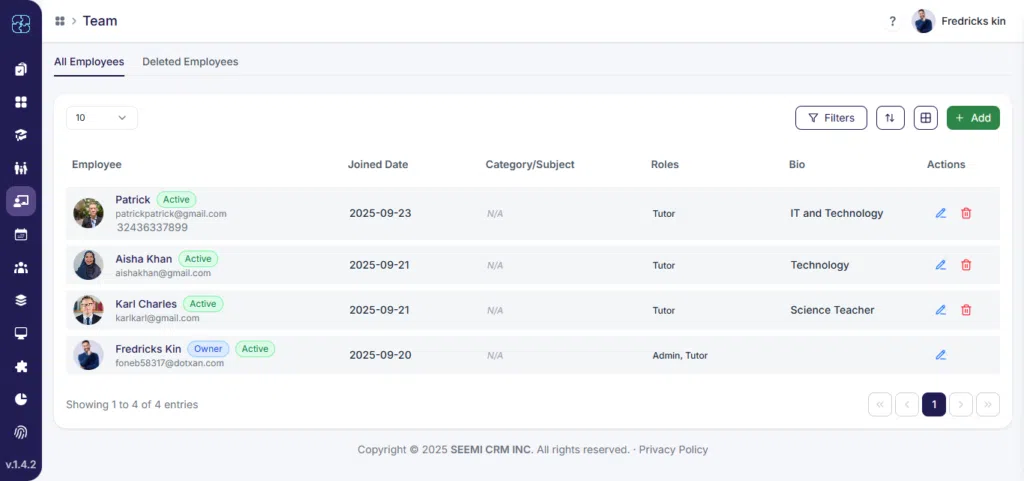
This guide will help you manage your team members efficiently—from viewing profiles to handling payroll and scheduling.
Family Management Complete Guide
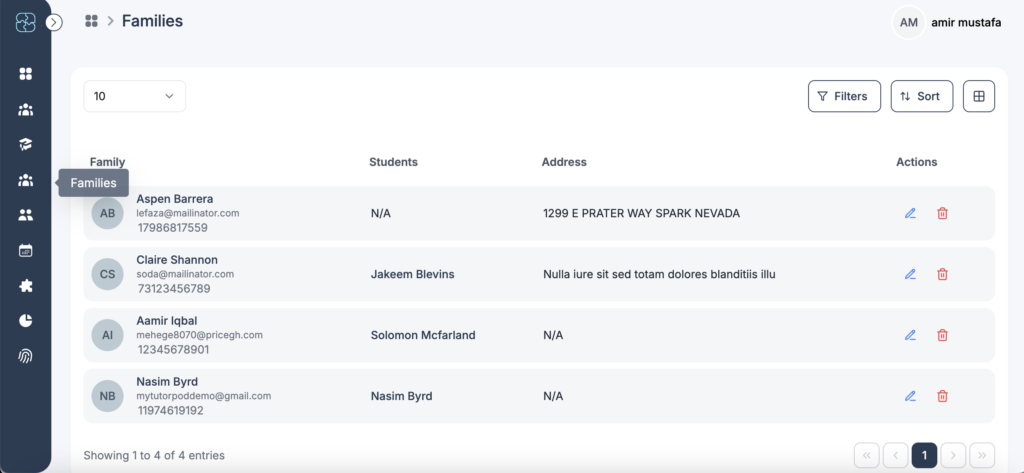
This tutorial will teach you clear, step-by-step Family Management Guide from start to finish, covering listing families, filtering, sorting, viewing details, managing invoices, transactions, and automatic invoicing.
Connect and Disconnect Integrations
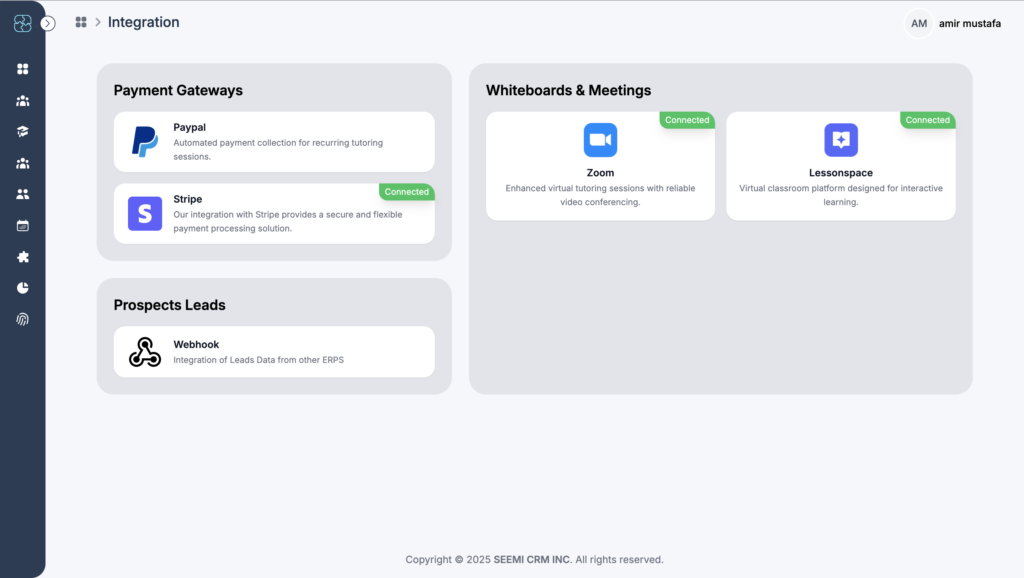
In this video, we’ll walk you through how to connect and disconnect your integration in just a few clicks.
Students Page User Guide
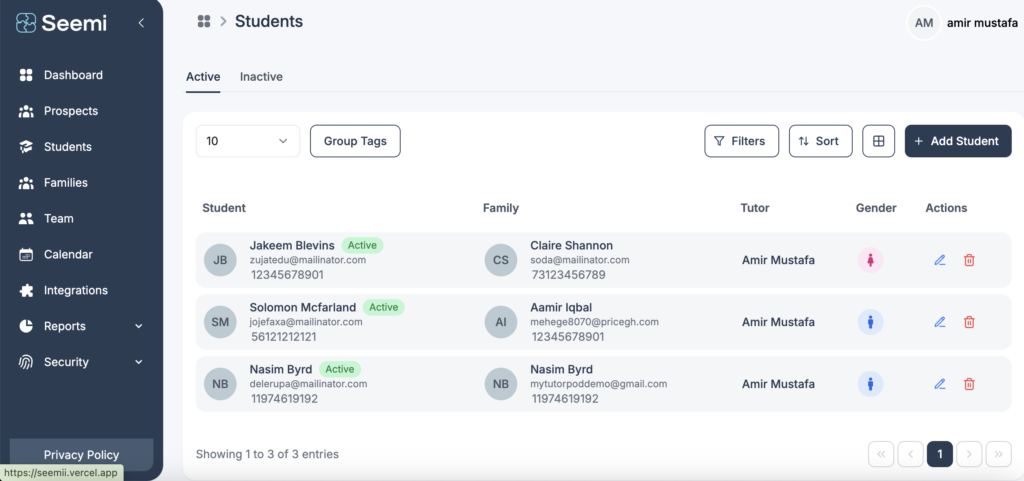
In this Tutorial we will will sharing how to manage students in SEEMI CRM. First of all, navigate to the Students tab and select a student to open their detailed profile. Here, you can view and update personal information like date of birth, gender, and school. Family contact details and communication preferences are easily accessible and editable. Assign or unassign tutors, set lesson details, and control student or parent portal access. You can also send emails directly and track attendance records. This centralized view helps you efficiently manage all aspects of a student’s profile and communication.
How to Add a Prospects
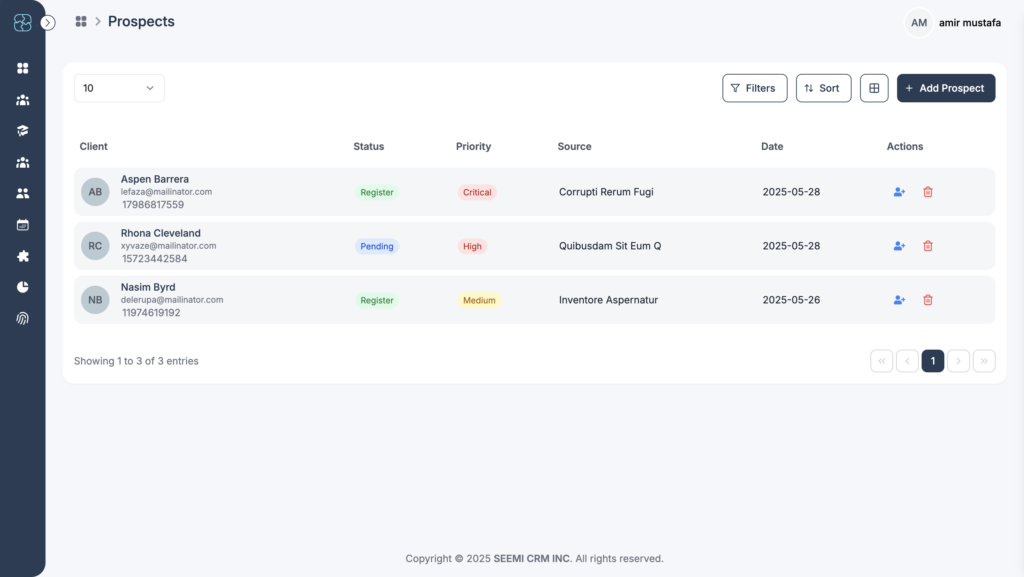
In this tutorial, we’ll walk through how to view and manage your prospects in SEEMI CRM. After logging in, navigate to the Prospect tab from the main dashboard. Here, you’ll see a list of all your current prospects. You can choose to view them in either a grid or list layout, depending on your preference. Click on any prospect to open their detailed profile, where you can add notes, compose emails, and update their information. This view helps you stay organized and ensures every prospect is followed up on effectively.
How to Sign Up
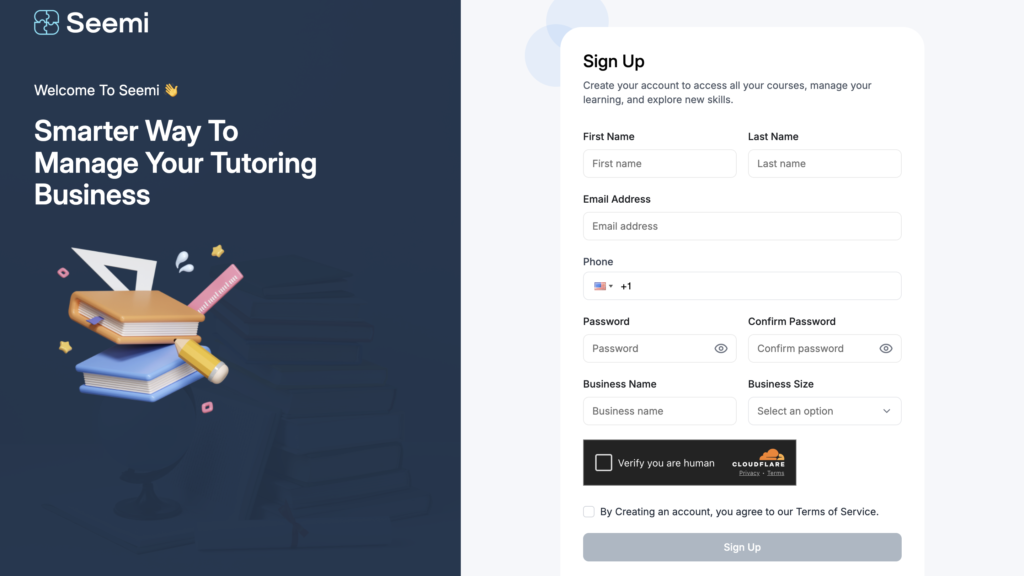
In this tutorial, we’ll cover how to sign up for SEEMI CRM.
To create an account, visit the SEEMI CRM website and locate the sign-up section. Fill in your name and email address, then submit the form. You’ll receive a confirmation email to verify your account. Once verified, you can log in and start managing your prospects and leads.